MANAGING EUTHANASIA

This will guide you step by step to add, modify and delete Euthanasia

content

1. Add Euthanasia

2. Display Euthanasia

3. Edit Euthanasia

4. Delete Euthanasia

1. Add Euthanasia

At the main screen, a new screen will appear. According to the data you saved, a list of owner data will be displayed. Please choose an owner, then choose a pet.


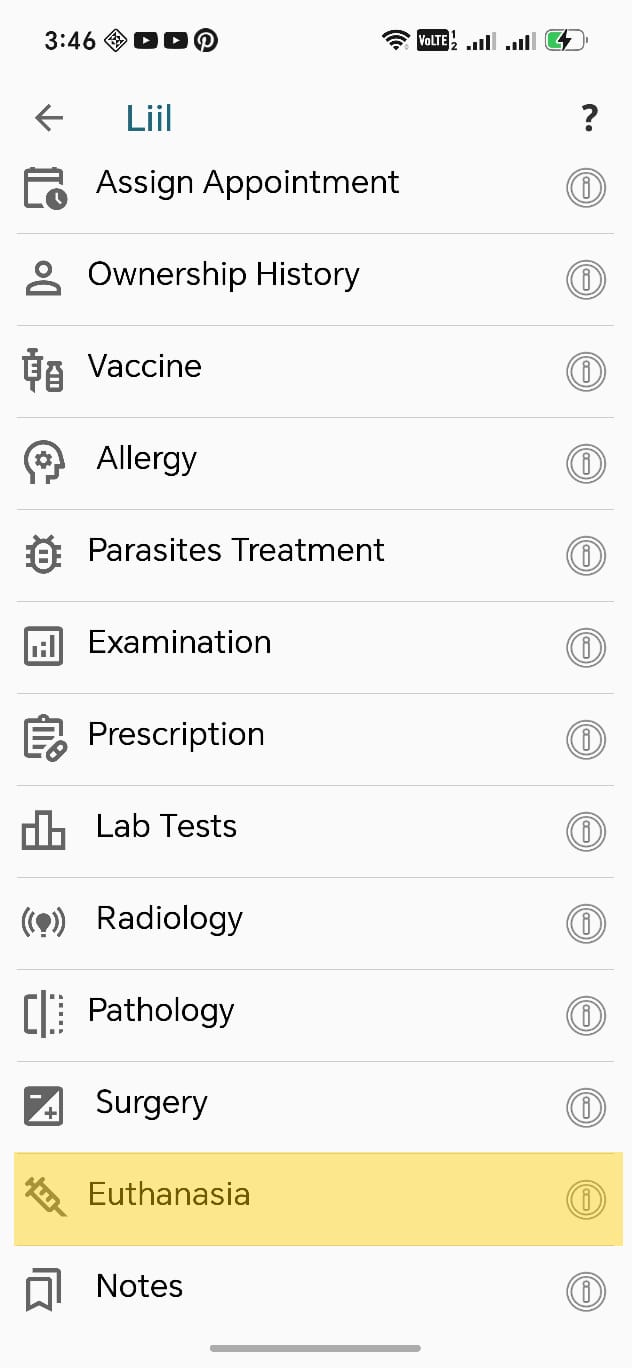
A new screen will appear. Please press on the "Euthanasia" tab.


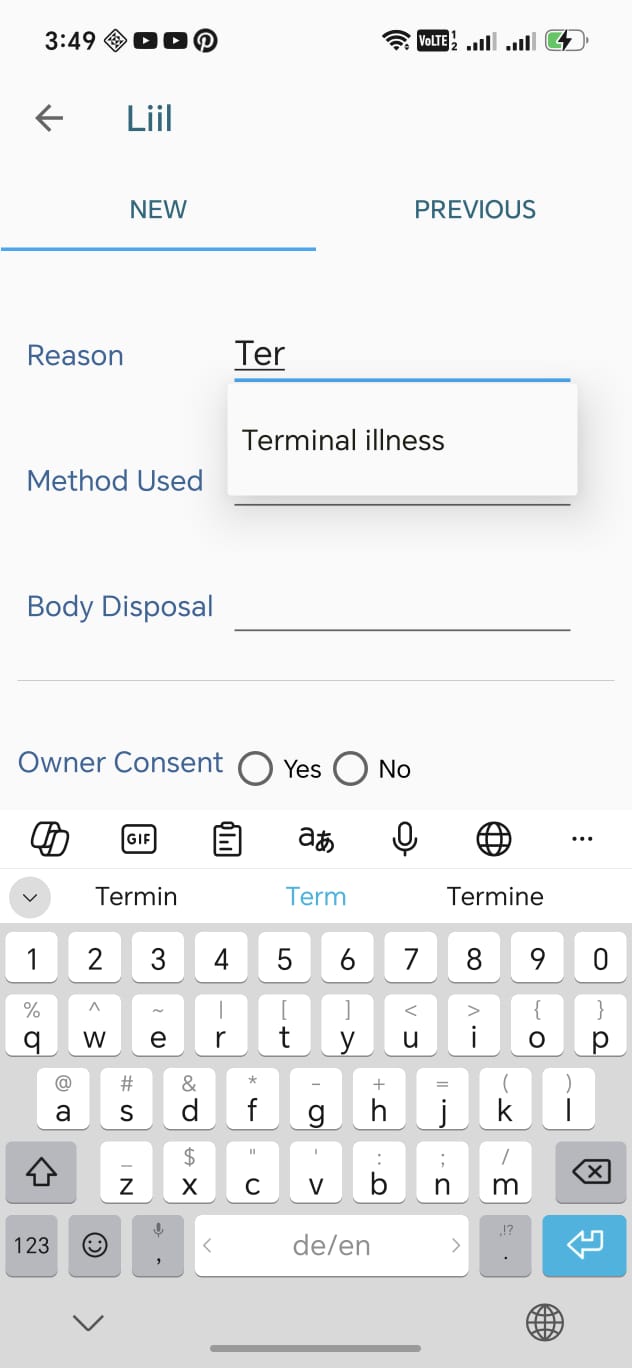
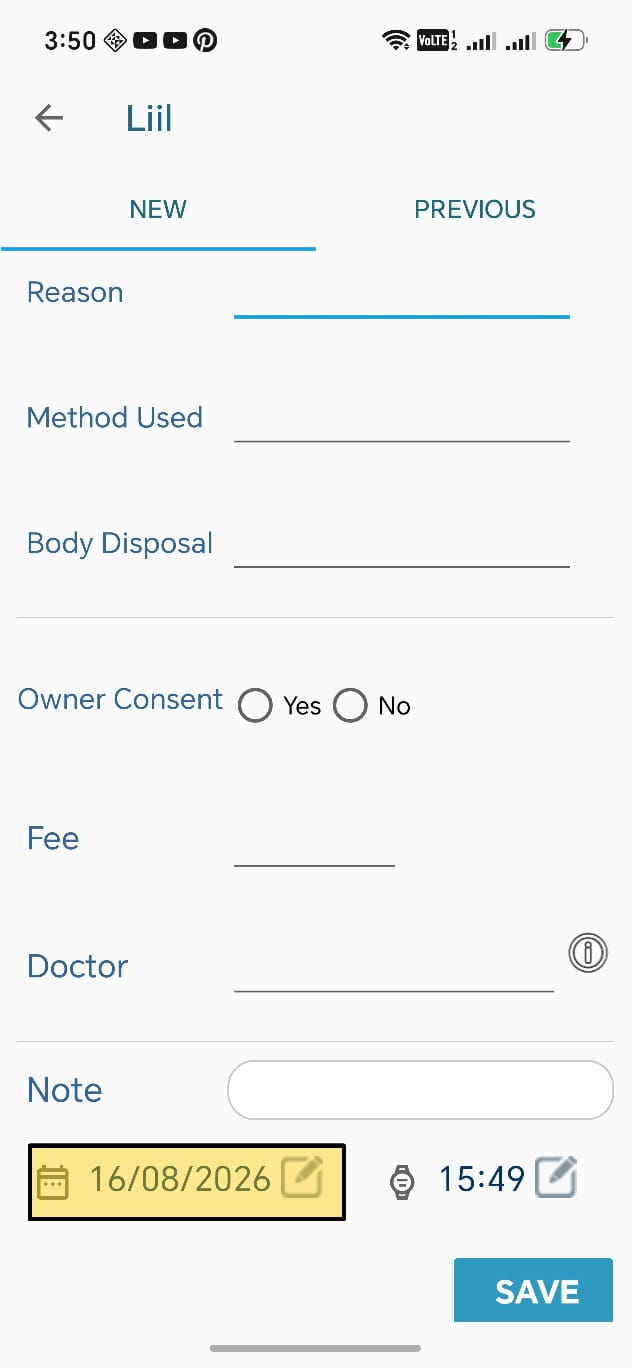
A screen will be displayed, offering adding new euthanasia. Note that euthanasia field uses the auto-complete style; you enter the euthanasia just once and the system will save it, you will select it later instead of typing it again, Please enter the needed data then press the save button


You may change the euthanasia date, Press on the highlighted icon on the screen.


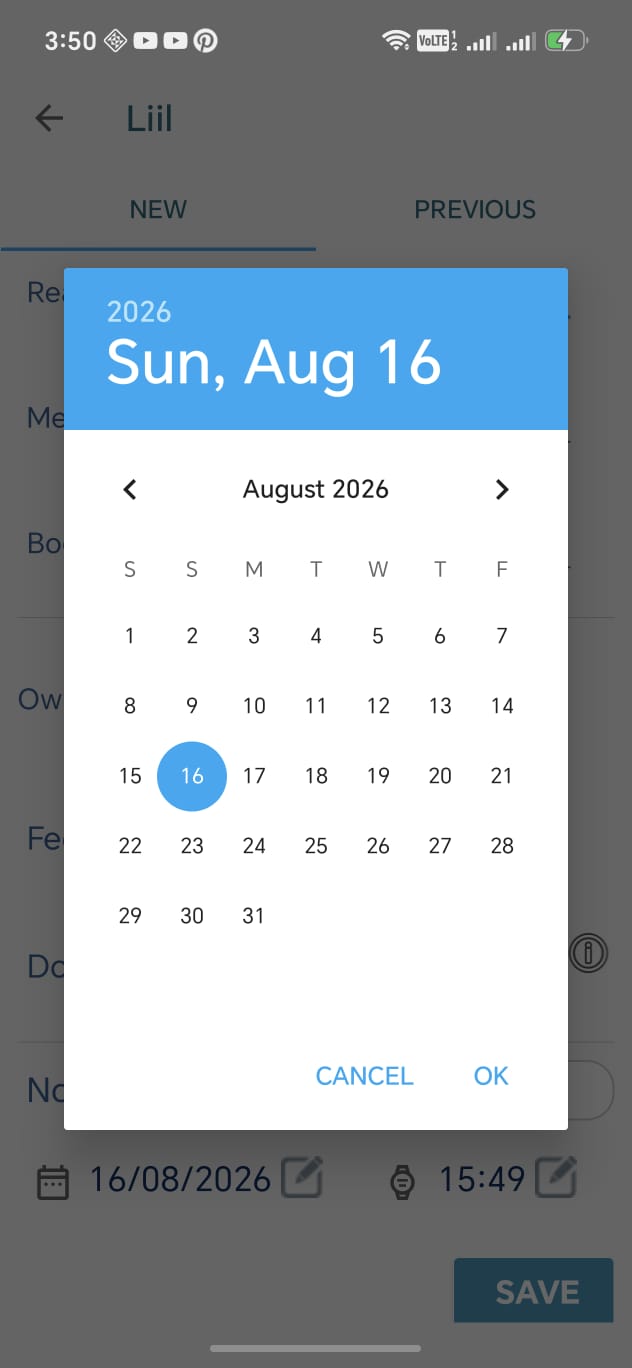
The date pop-up window should appear, Please set the appropriate date then click "ok"


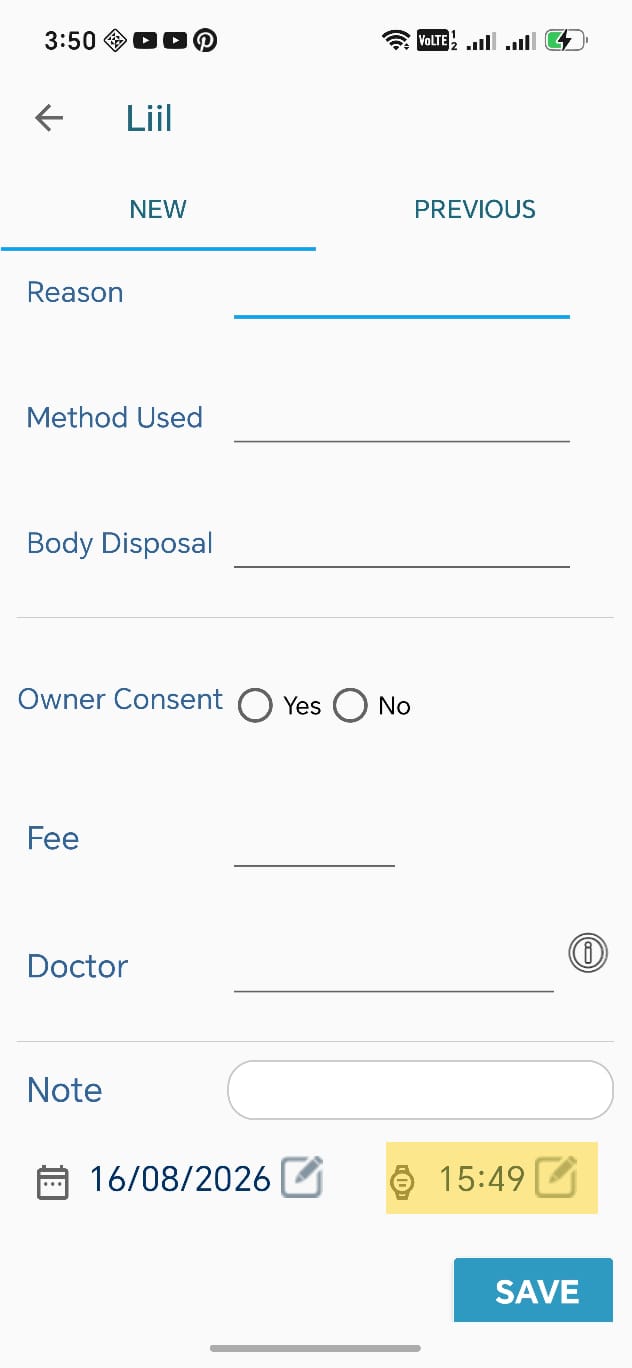
You may change the euthanasia time, Press on the highlighted icon on the screen.


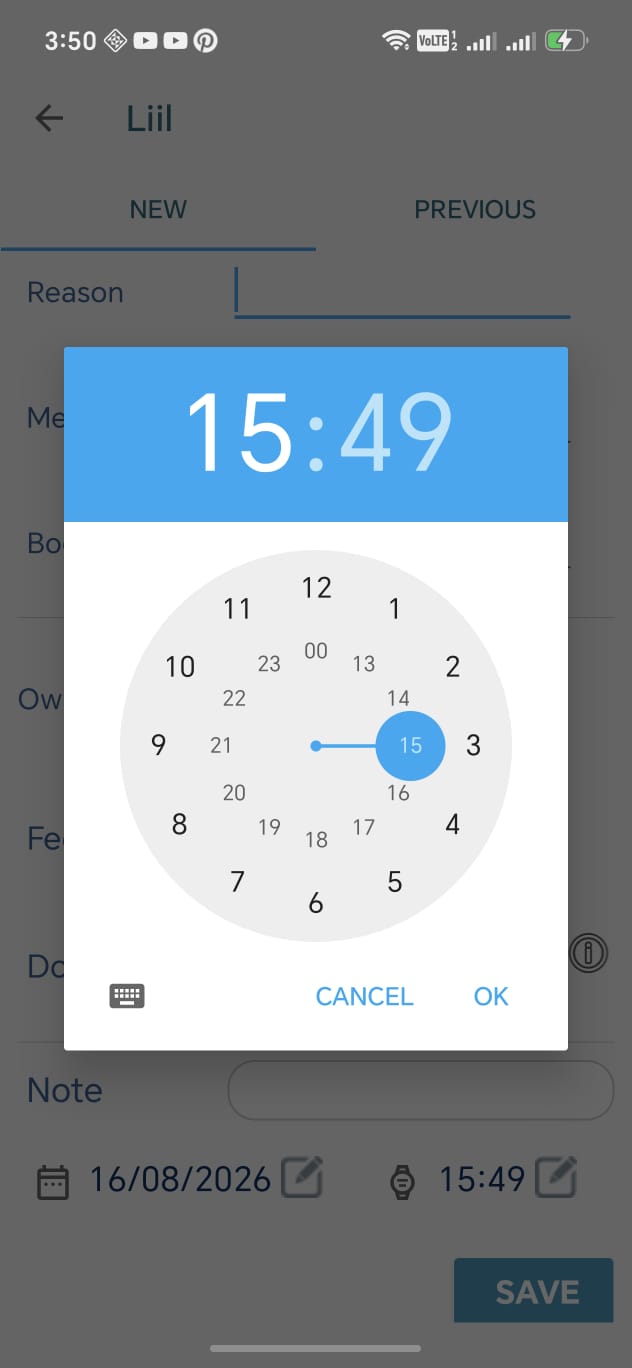
The time pop-up window should appear, Please set the appropriate time then click "ok"


2. Display Euthanasia

At the main screen, a new screen will appear. According to the data you saved, a list of owner data will be displayed. Please choose an owner, then choose a pet.


A new screen will appear. Please press on the "Euthanasia" tab.


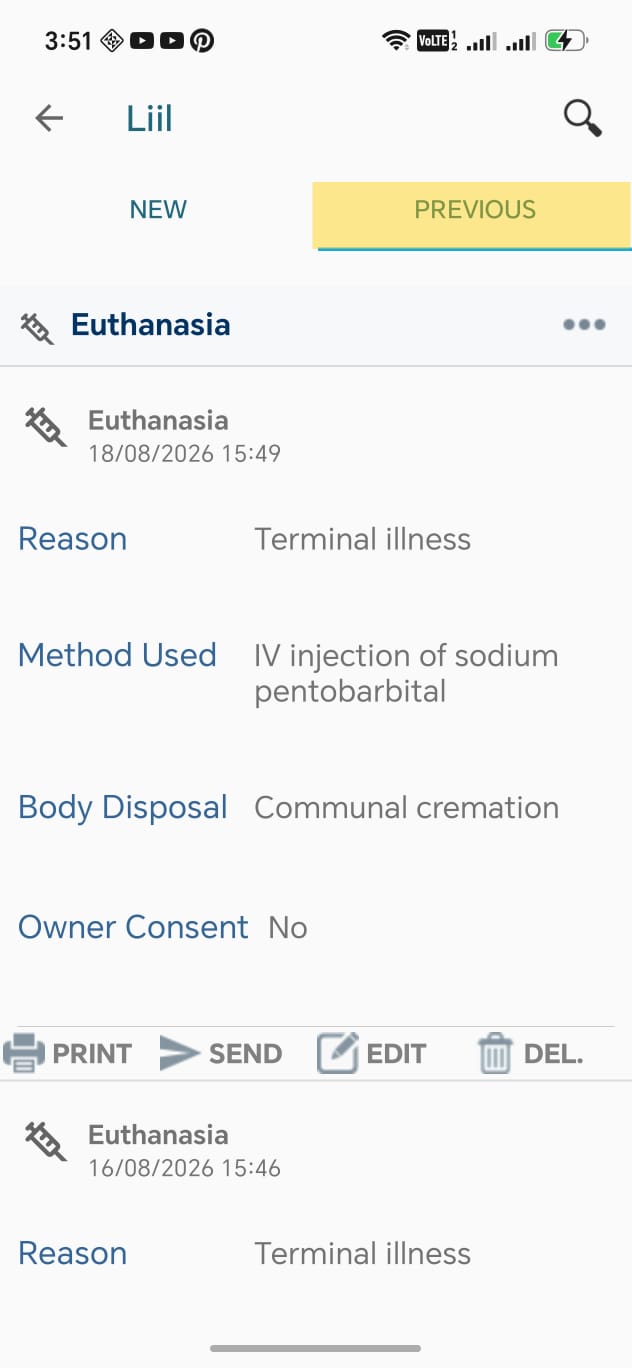
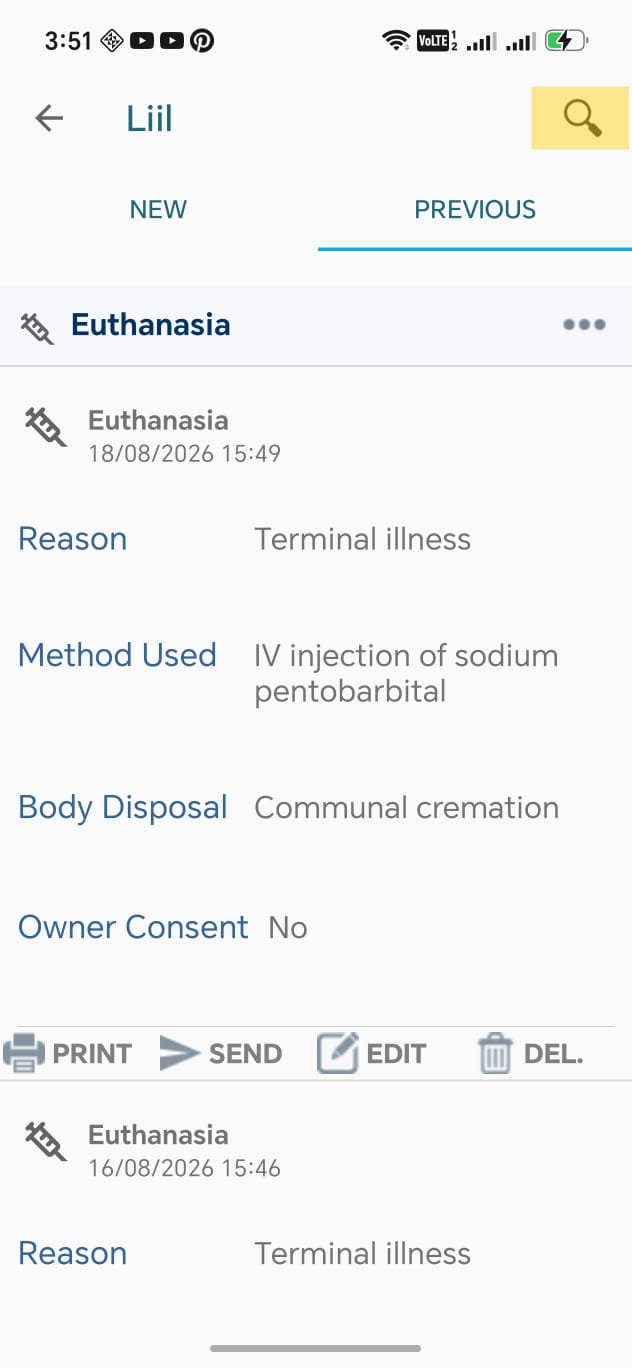
A new screen will appear. Please press on the "Previous" tab. According to the data you saved, a list of euthanasia data will be displayed.


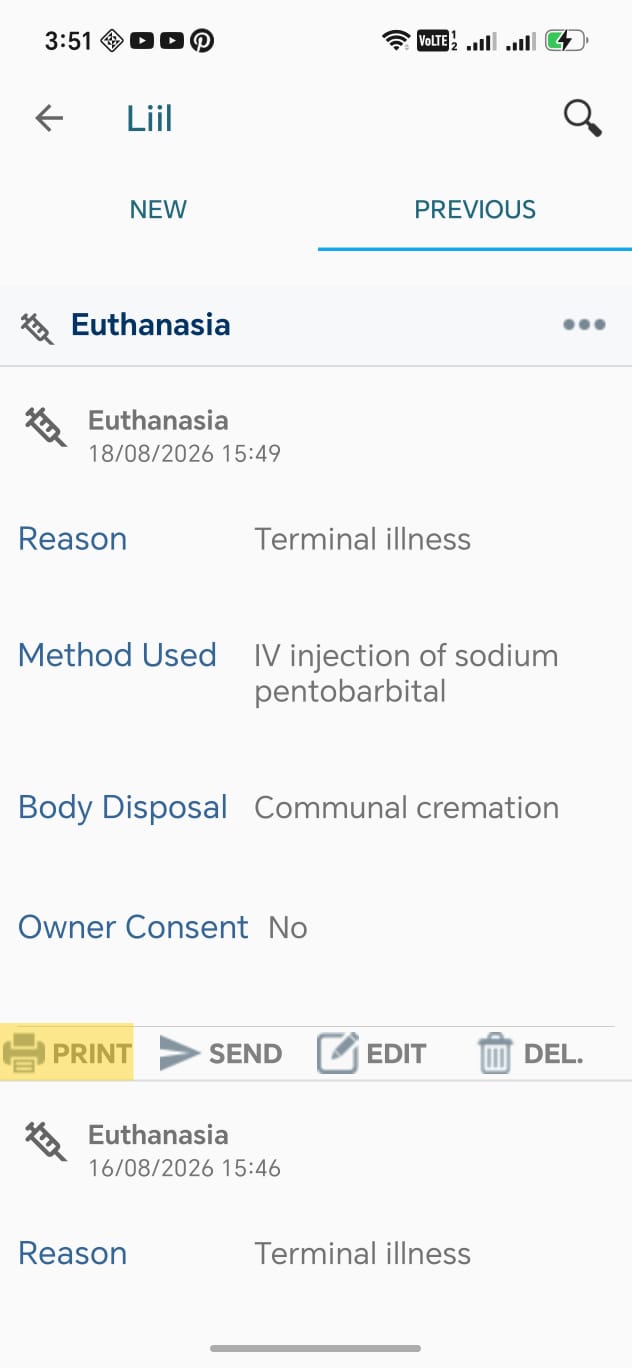
You can print a report of the euthanasia, please choose the action you want. In this case "print" selected.


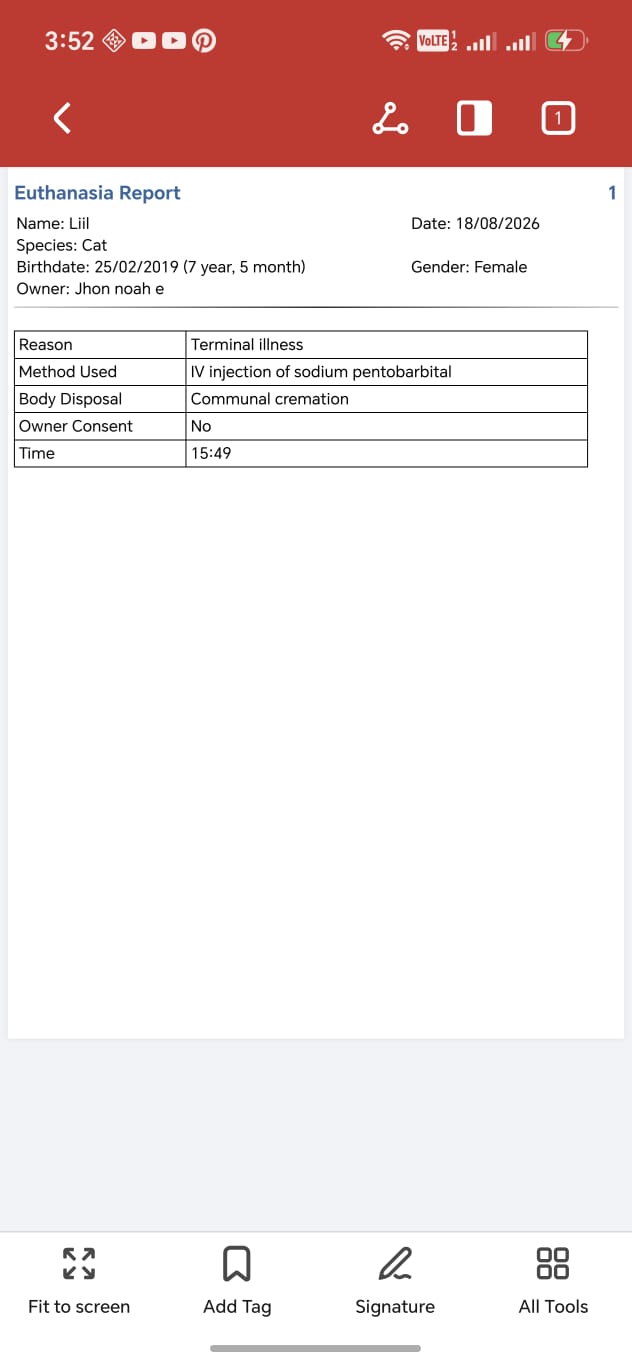
After tabbing the "print" button. A pdf report will appear, which is ready for printing.


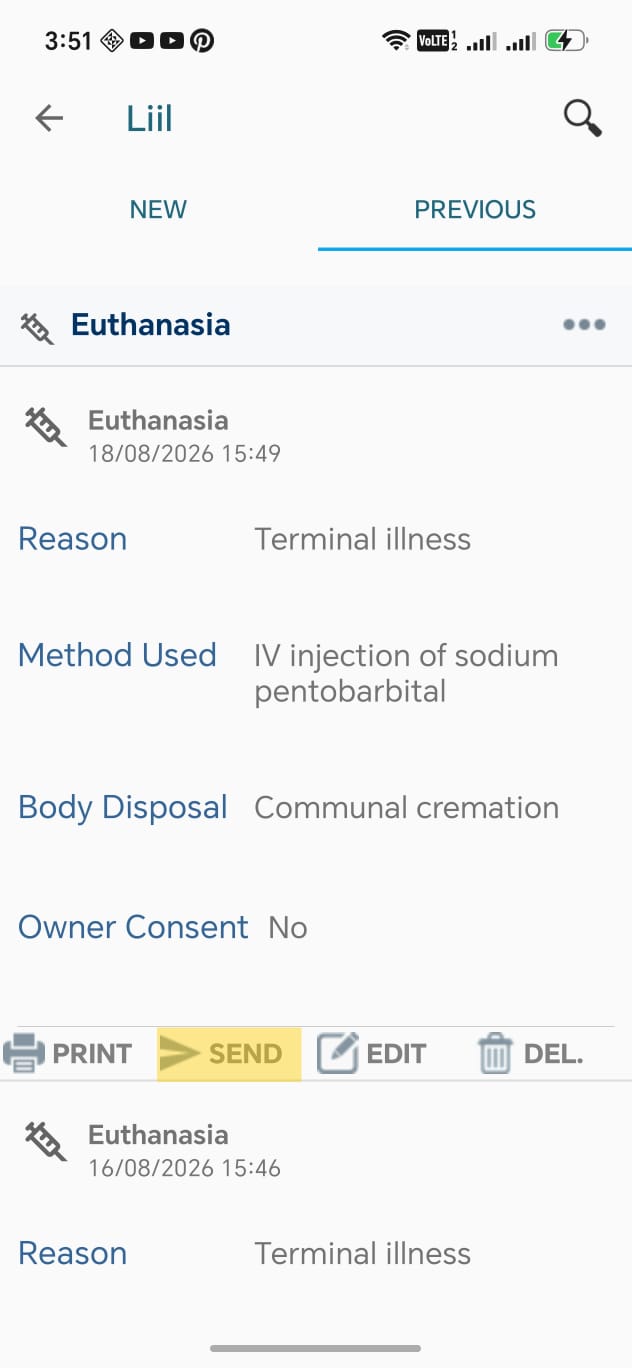
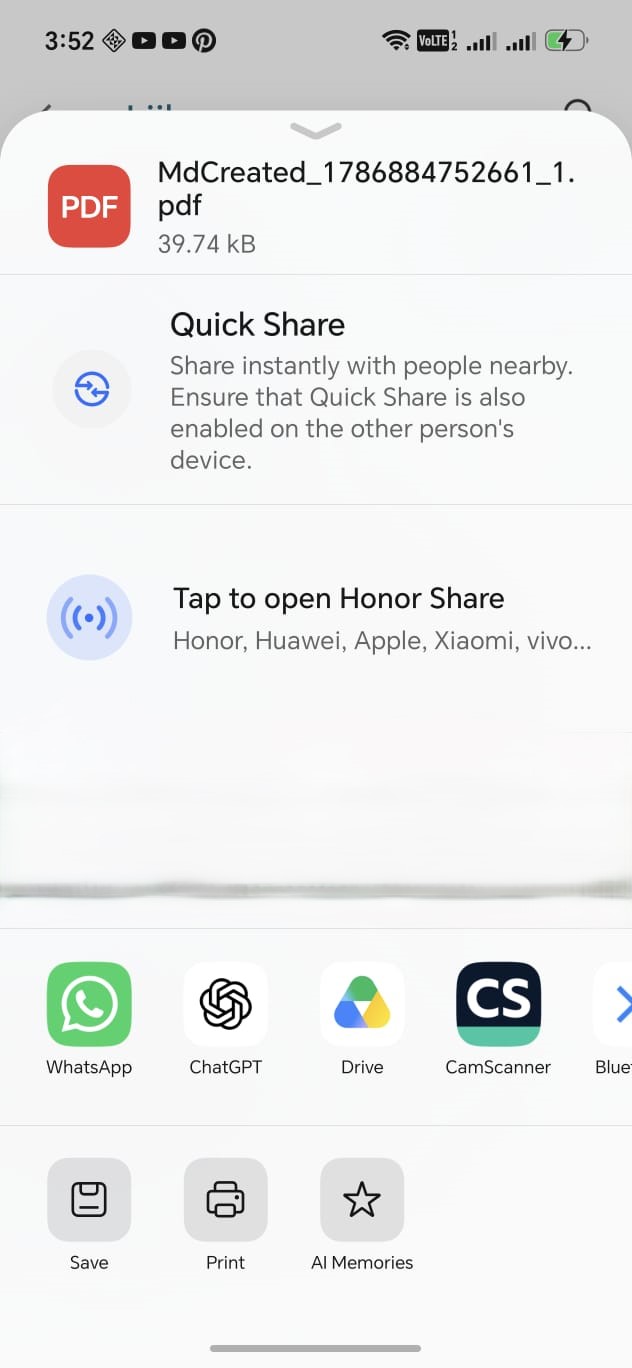
If you want to send the report to to whom it may concern, please choose "send".


After tabbing the "send" button, a window will appear offering to send the report.


You may filter the data, press on the search icon at the top right of the screen.


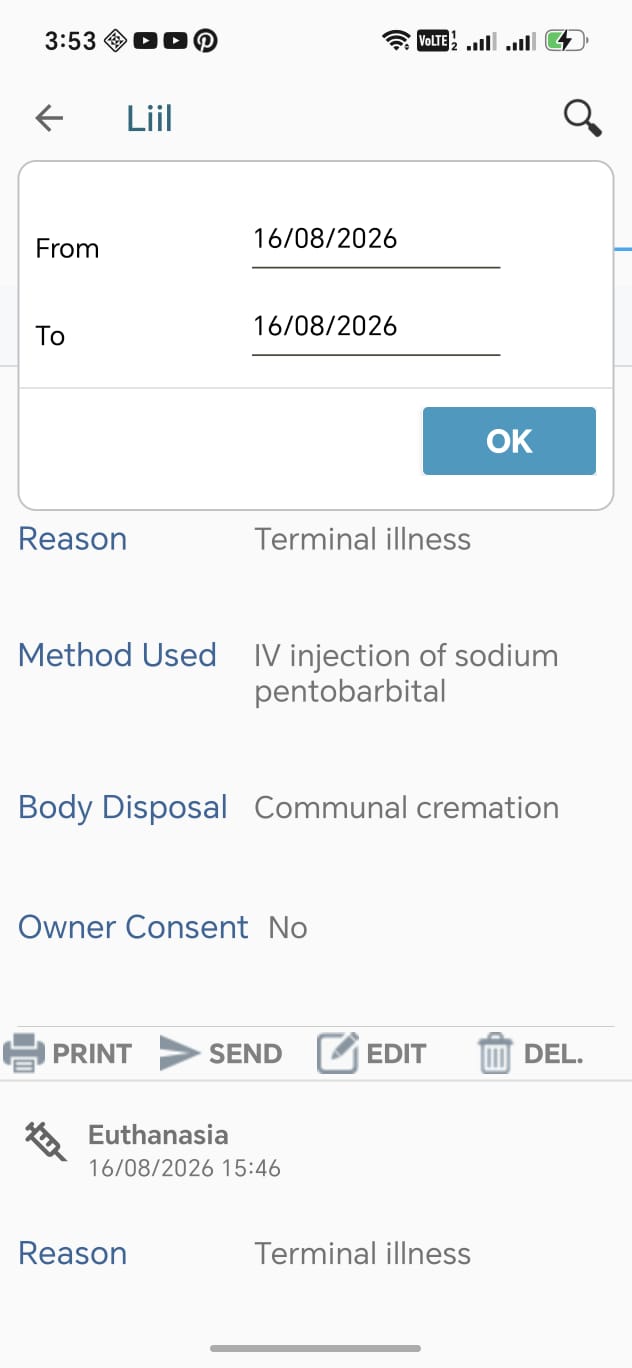
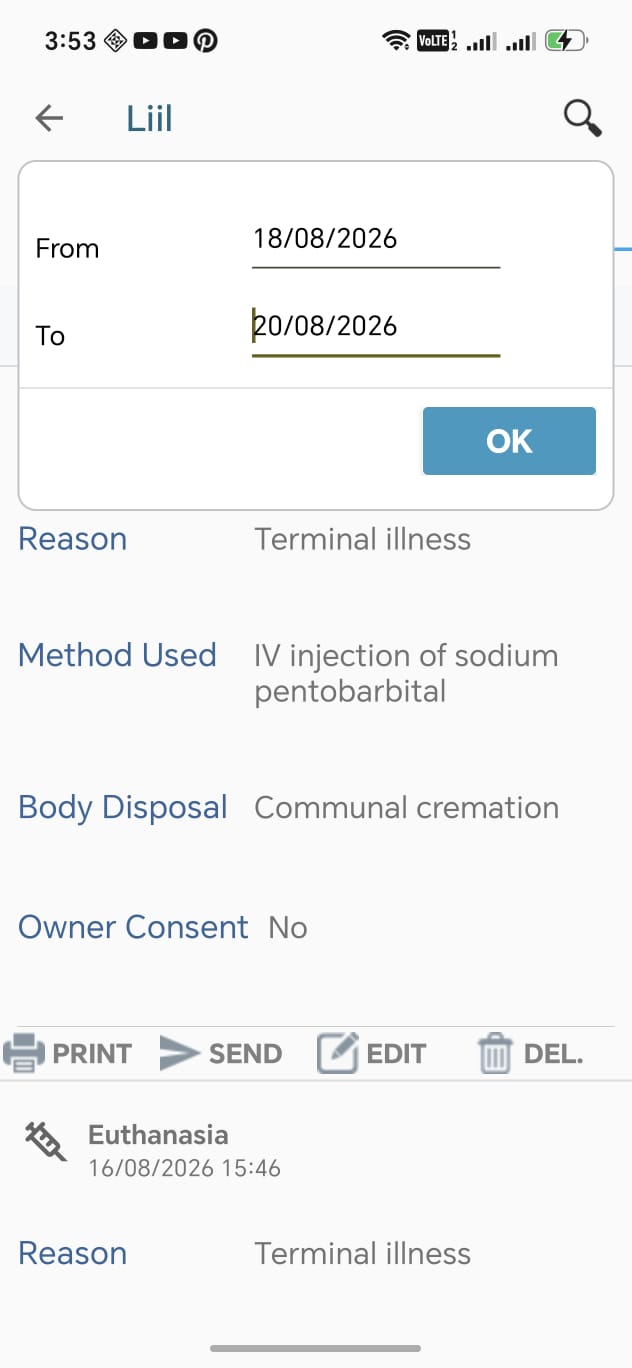
A pop-up window will appear, that offers a date-range filter, press on the date you need to change


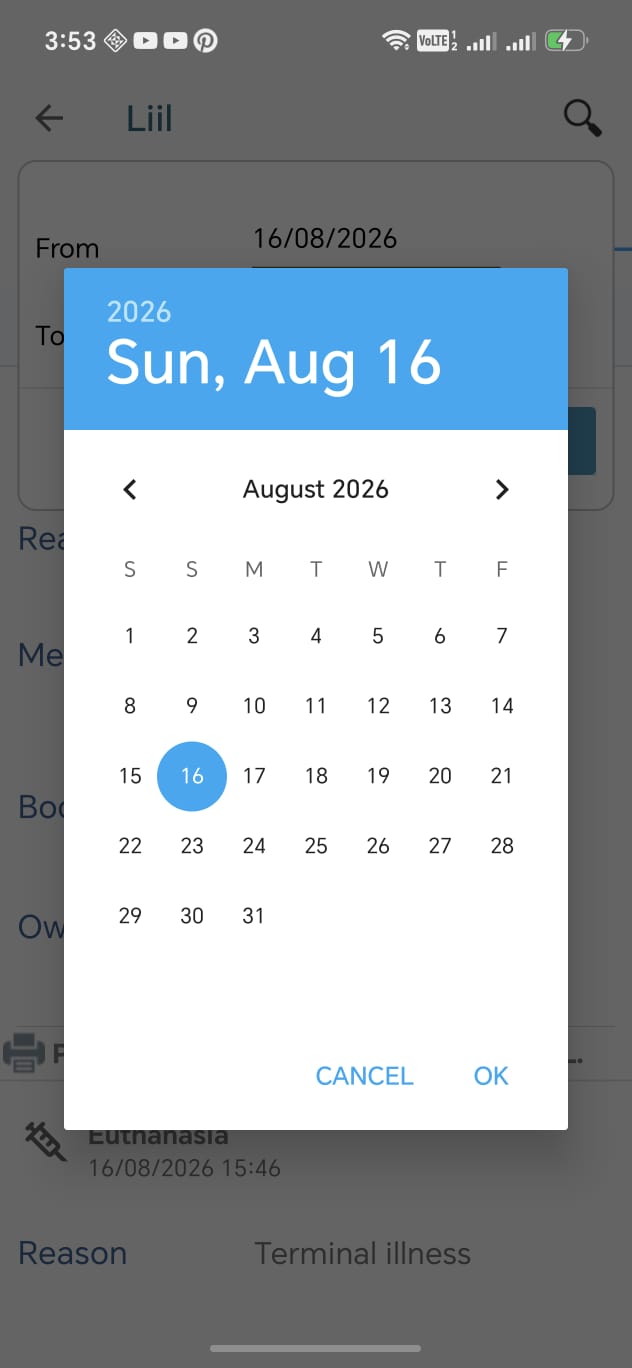
A date pop-up window should appear, please set the appropriate date then click "ok"


After setting the appropriate date range, please click "ok"


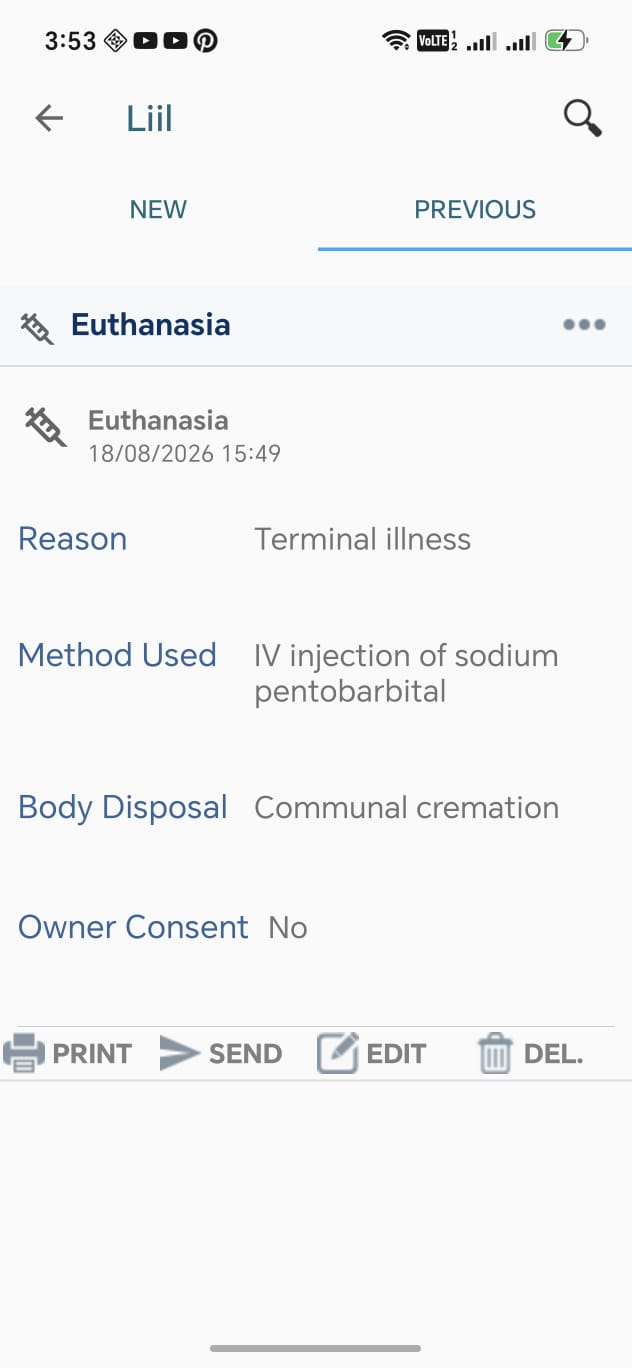
Only the euthanasia in the data-range will be displayed

3. Edit Euthanasia

At the main screen, a new screen will appear. According to the data you saved, a list of owner data will be displayed. Please choose an owner, then choose a pet.


A new screen will appear. Please press on the "Euthanasia" tab.


A new screen will appear. Please press on the "Previous" tab. According to the data you saved, a list of euthanasia data will be displayed.


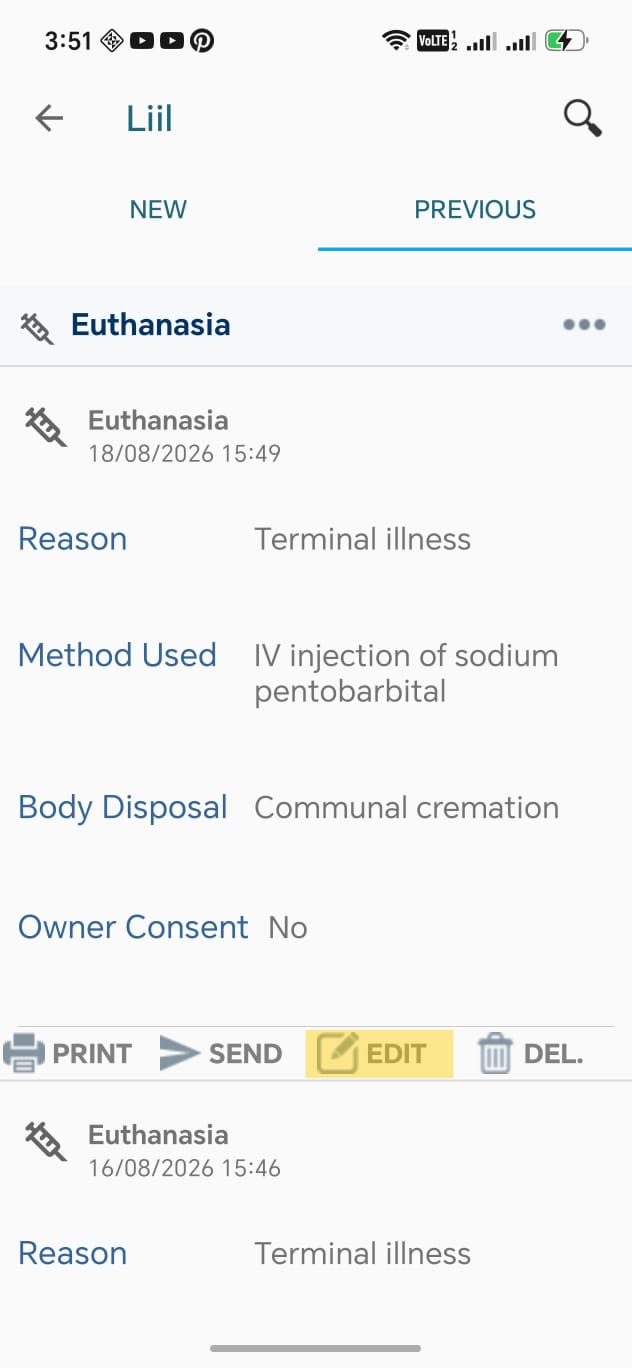
Please choose the euthanasia you want to edit, please tab the "Edit" button.


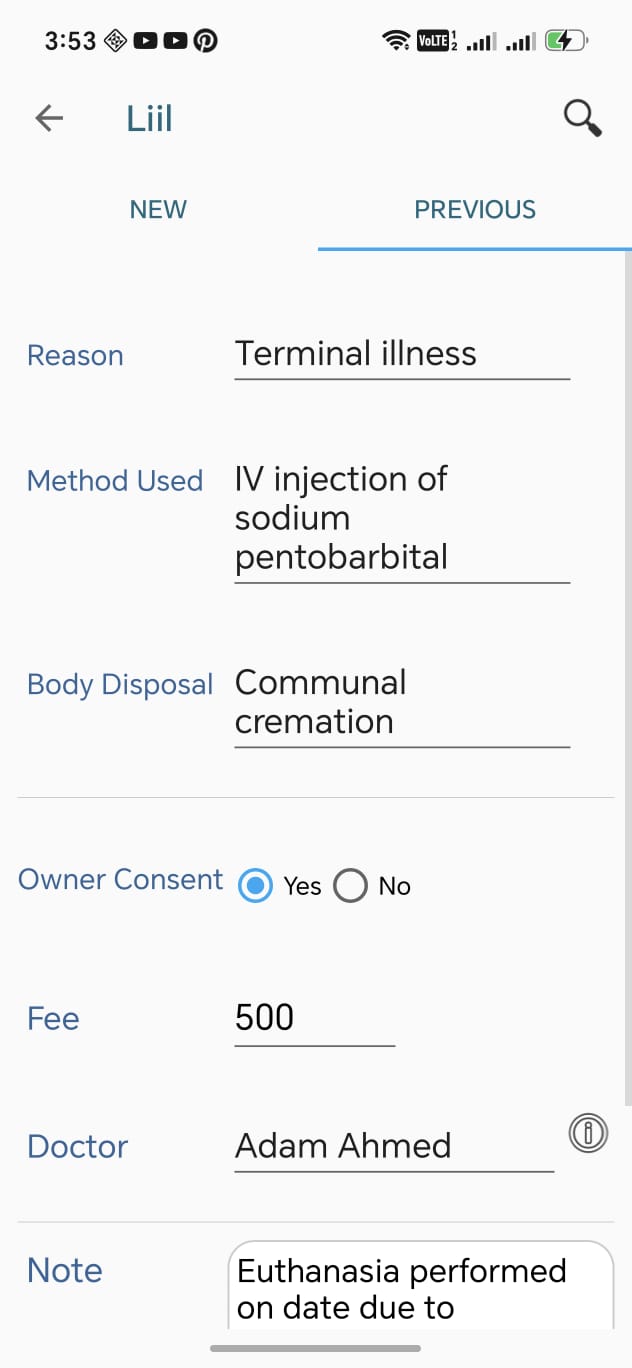
You will see a screen that displays the euthanasia information. Please modify the needed data then press the "Save" button.

4. Delete Euthanasia

At the main screen, a new screen will appear. According to the data you saved, a list of owner data will be displayed. Please choose an owner, then choose a pet.


A new screen will appear. Please press on the "Euthanasia" tab.


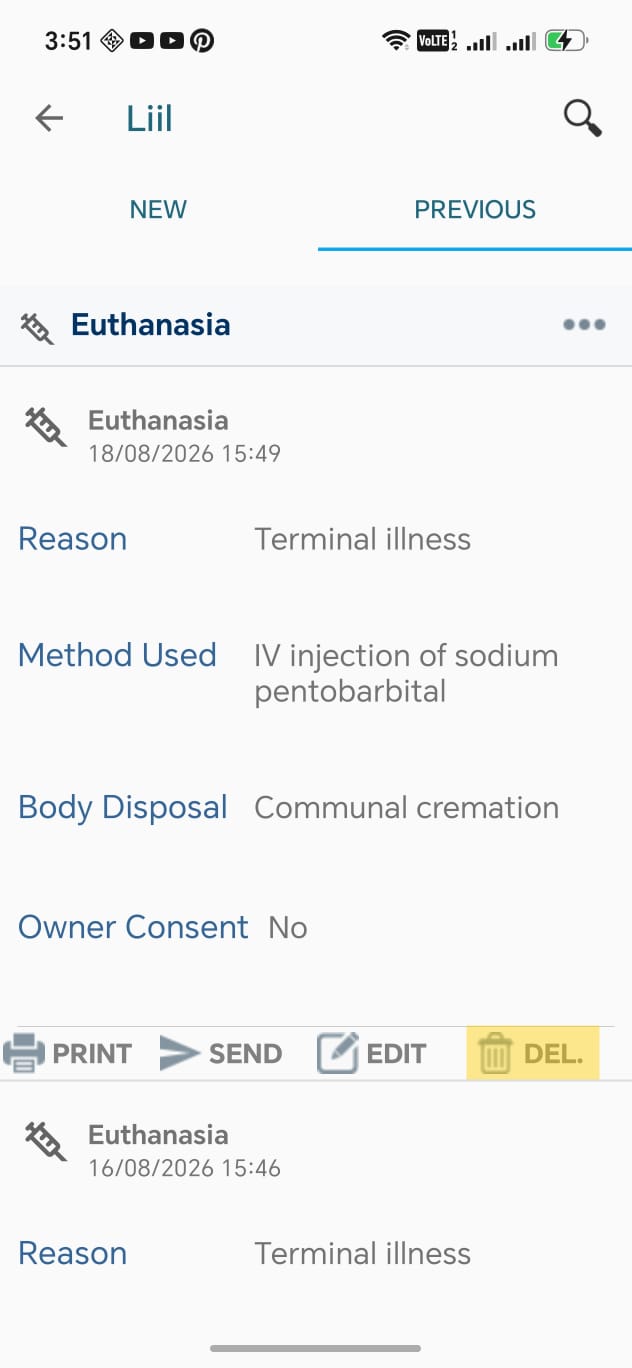
A new screen will appear. Please press on the "Previous" tab. According to the data you saved, a list of euthanasia data will be displayed.


Please choose the euthanasia you want to delete, then press the "Delete" Button.


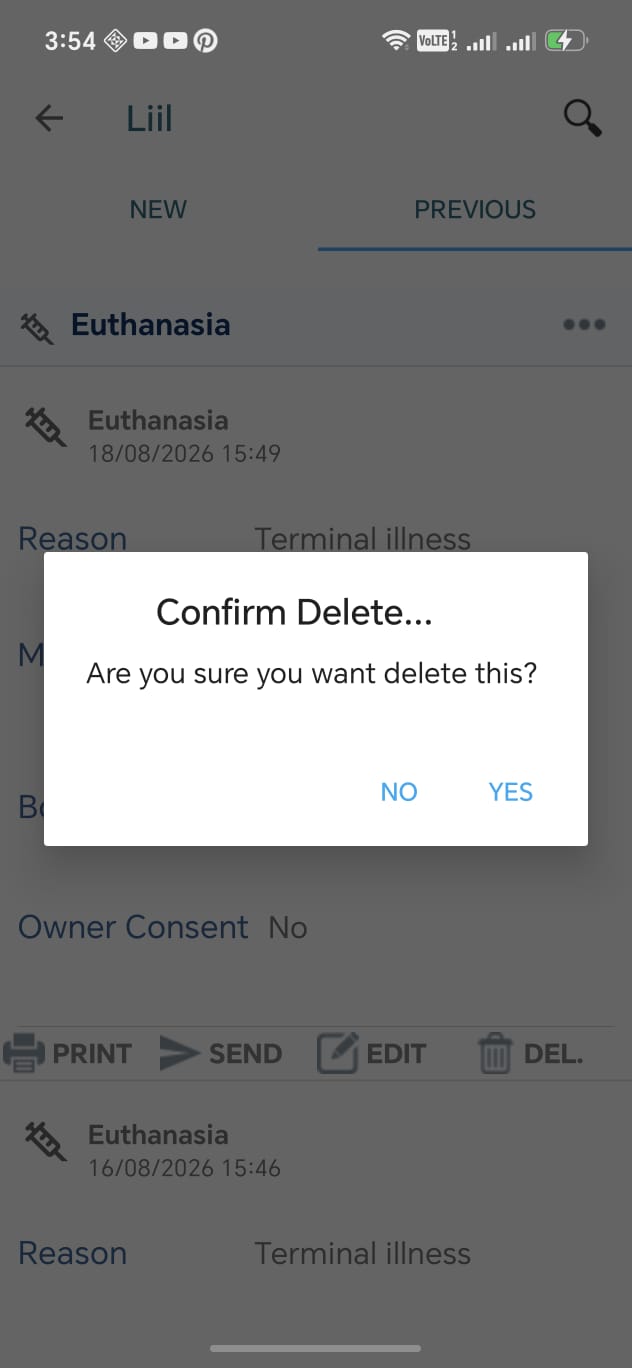
A confirmation message will be displayed. You can Delete the euthanasia by pressing on the "YES" button. Note that you will not be able to recover the deleted data.